Learn how to correct words, names, dates and short passages directly in PDFs that contain selectable text.
EditFull practical documentation · edition reviewed: 26 October 2026
When this task helps
When a PDF contains selectable text, small corrections can be made directly in the document without rebuilding the whole page in another application.
Worked example
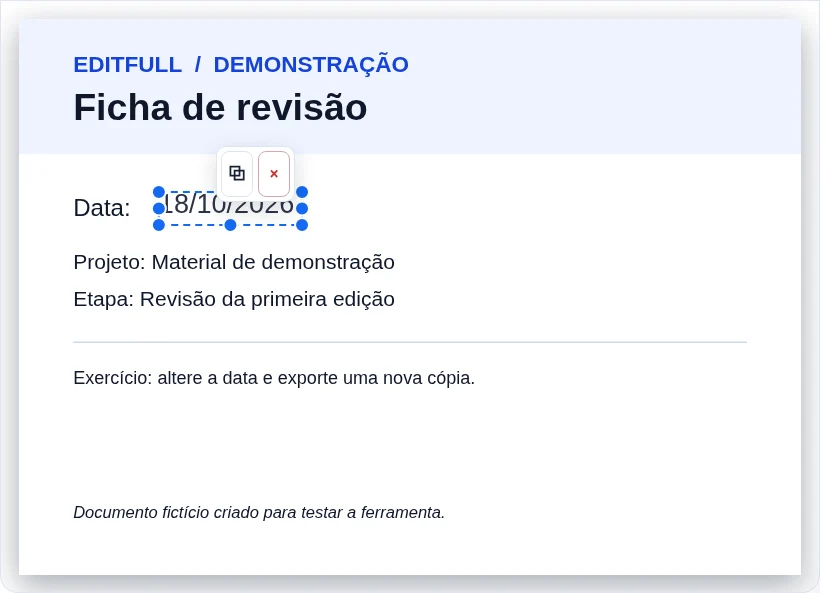
Changing “15/10” to “18/10” uses similar space. Replacing a short name with a much longer one can overlap adjacent words. Make one change at a time and check alignment.
What to check before starting
Use direct editing for words, names, dates, numbers and short passages. Then review context, alignment and every changed page before downloading the new copy.
Choosing the settings
Test word selection, apply the correction and compare with the original. Replacement text may look different when the embedded font cannot be reused.
Limits that affect the result
A drawn or pasted signature is not a cryptographic digital signature. Document edits may invalidate existing digital signatures.
Mistake to avoid
Do not treat an image-only scan as if it contained real text. When the page is only an image, the original content is not clickable for direct editing.
Illustrative example: size and quality depend on the source file.
Try an EditFull example
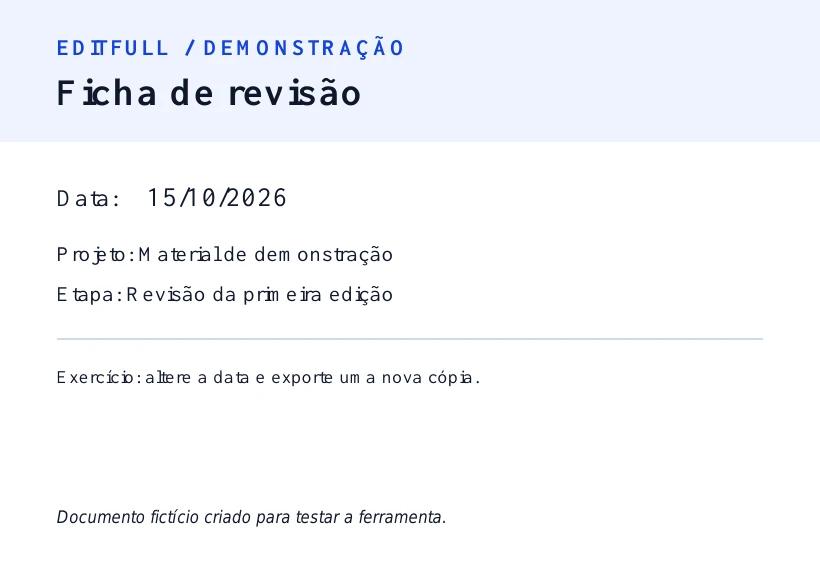
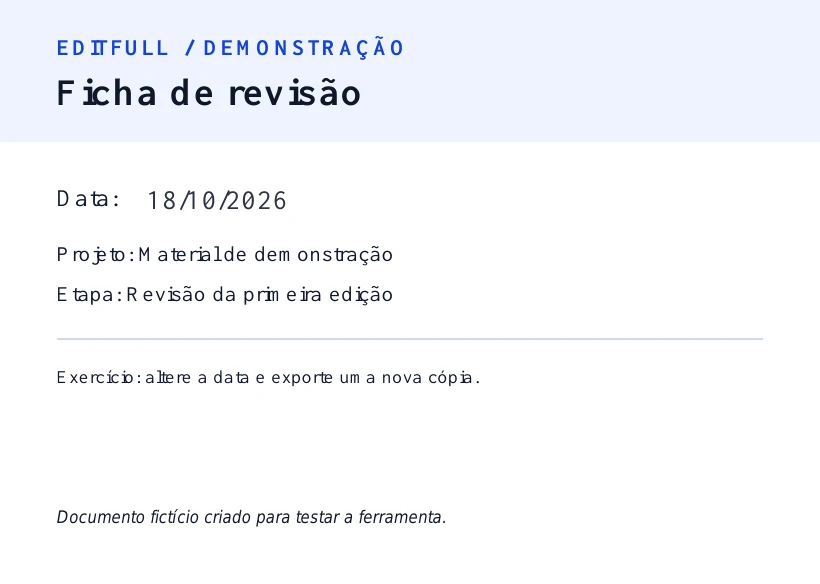
In this fictional document, change the date from 15/10/2026 to 18/10/2026 using Edit text. Compare the saved copy with the original. The scanned version looks the same but was saved as an image and has no selectable text.
See the change in the editor